



NET IPTV can be downloaded to most Android boxes and Smart TV devices today. The app is quite simple to get started with and is recommended for those who don’t have the option to buy a box or download a better app such as Tivimate.
NET IPTV is however not the easiest app to get started with since you have to upload your playlist via their website which can be complicated if you’re a beginner.
We recommend that you instead start with IPTV Smarters if the app is available for your device to later switch to a more advanced app that is more stable and has a better interface. We have collected the guides for the app on this page so that you can quickly get started on your specific device whether you have an Android Box or a Smart TV.
On this page you can see instructions for the app for the following devices:
NET IPTV works well with Samsung, LG, Philips, Sony etc. Since you can install the app and many other apps, Samsung TV is a device that can be used for TV watching. However, we always recommend clearing unnecessary apps that are not used and having a slightly newer model since most IPTV lists today are very large and contain hundreds of thousands of titles such as channels, movies, series, documentaries etc.
Usually, it takes about 5-15 minutes to get started when you’re trying to get the TV channels up and running on your Samsung TV for the first time. However, if you get stuck and need help, you can always contact our support.
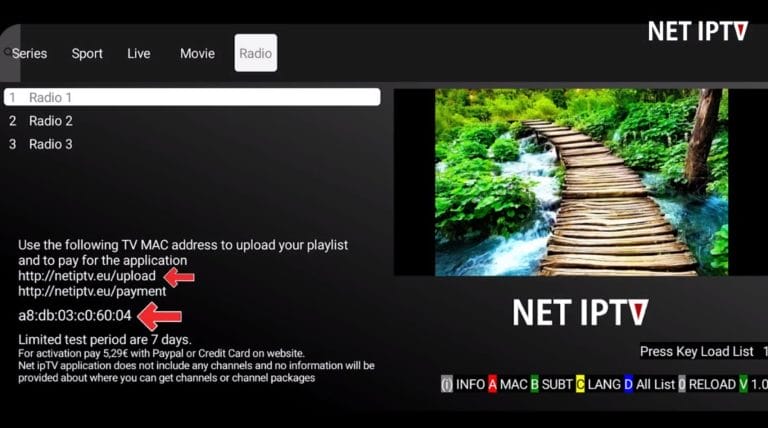
Start the app and note your MAC address which in this example is shown next to the red arrow (ends with 60:04 in the picture).
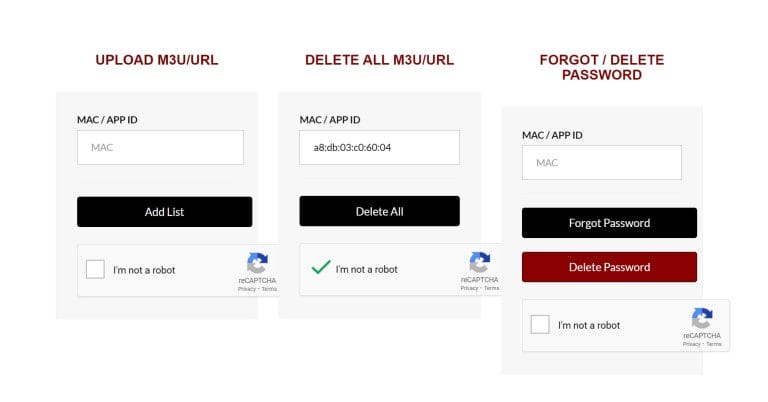
Now visit https://netiptv.eu/upload and fill in your mac address in the box “Delete All M3u/URL“. Then click “Delete All” after checking the box “Im not a robot“.
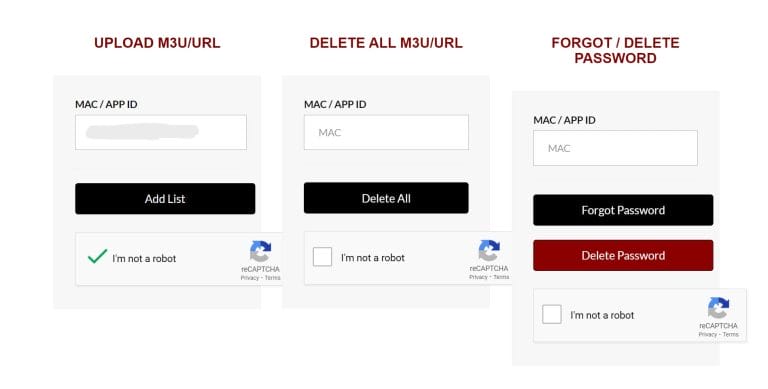
Now fill in your mac address in the box “Upload M3U/URL” and then click “Add List“.
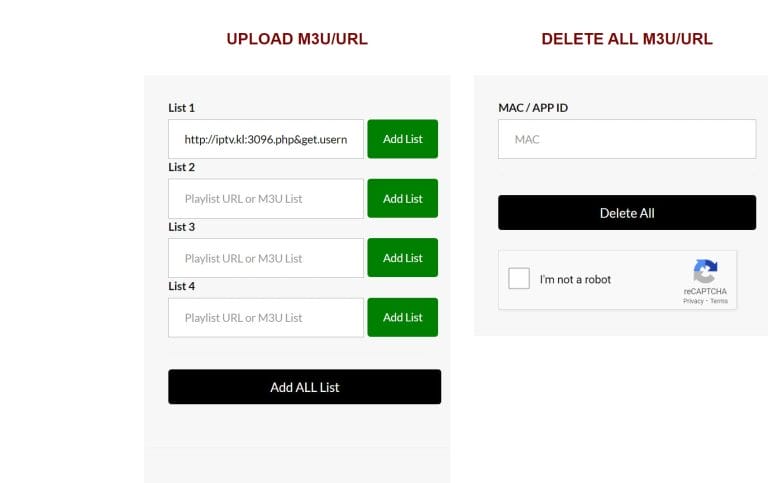
Here you paste your M3U link and then click “Add List“. Now restart your app. Done! 🙂
The apps can be downloaded from the Play Store to your device.
Only download the app from a well-known source such as the Play Store. This is because you might accidentally download viruses if you’re not careful.
Net IPTV with Smart TV is a good combination when you’re a beginner or when other alternatives are not available. The app is relatively smooth on TV devices since it’s created to work well on all devices. The app is available on most LG, Sony, Samsung and Philips TVs that have Android-based systems. Even though the app works well with your device, it’s recommended that you instead use a better app such as Tivimate.
[custom-step-guide id=”14066″]
Net IPTV with Nvidia Shield is therefore a fast and smooth solution since it’s easy to get started with. Even though the app works well with your device, it’s recommended that you instead use a better app such as SET IPTV.
Net IPTV with Android Box works quite okay to start with. Even though the app works well with your device, it’s recommended that you instead use a better app such as Tivimate since that app has a better interface and more stable servers.
Net IPTV with Xiomi Mi S Box or Xiomi Mi Stick are unfortunately not the best devices for IPTV watching when compared to for example Apple TV. This is because the processor in both devices is not the strongest. If you want to watch IPTV with Xiomi Mi devices it’s certainly possible and the experience can still be good. However, if you’re looking for a more stable, smoother and more long-term solution, this method is not preferable.
Net IPTV with Formuler Box works quite well. The Formuler box is however created as a slightly different Android box for IPTV since it has its own IPTV app MyTVOnline. The MyTVOnline apps are much better than the NET app and therefore it’s recommended that you use those instead. [custom-step-guide id=”14093″]
How do you install Net IPTV on Smart TV?
To install the app on your Smart TV (Samsung, Google TV, LG, or other brands), start by downloading the app from the Play Store. Once you’ve done that, read through the instructions on how the app works on your specific device. Then request a free trial by clicking the button below.
Is Net IPTV free?
No, the app is not free. You can test the app for free for 7 days. Then you need to pay for it. It costs approximately 15 EUR.
How do you get subtitles on Net IPTV?
You can get subtitles on the app by pressing the red button on your remote control. However, many have reported that the later versions of the app no longer support subtitles. Therefore, another app is recommended.
You can use the following devices to watch IPTV
Unfortunately, subtitles work poorly on this app. If subtitles are important to you, you should choose another app.
Most titles have subtitles that automatically load with the channels when you start the app. If some channels do not have subtitles, they unfortunately do not, even though most do. In some cases, you can upload subtitles from your own sources, but this is not something we recommend or support as our focus is on more important tasks for our customers.
If you want to know more about subtitles for your app, it’s usually just a Google search away where you can mainly read about this on the app manufacturer’s own website. We wish you good luck! If you need help, we’re always here! In summary, however, subtitles are not the best for this app.