



MyIPTV Player Instructions

You can find MyIPTV Player instructions on this page. The app is available for Windows computers from, for example, Lenovo, Acer, Asus and many more. With the app, you can watch IPTV on both Windows 10 and Windows 11.

MyIPTV Player Instructions for your specific device

step 1 IPTV King

Instructions for MyIPTV Player

The MyIPTV Player app can be downloaded to most devices today. The app is relatively simple and smooth in appearance but a little difficult to get started with and is recommended for anyone who is familiar with the app from before. However, it is not the easiest app to get started with, as mentioned, and we therefore recommend IPTV Smarters instead if you are going to use your PC as it tends to be more stable. On this page you will see instructions for the app for the following brands, but also all brands where Windows is installed:
  • Asus
  • Acer
  • Lenovo
  • Chromebook
  • Dell
  • HP
  • MSI
  • Xbox

The app can be downloaded from the Windows Store.

The MyIPTV Player app allows you to upload your channels via your M3U link that you receive from us after purchase or request for a free test. It is recommended that you upload your IP-TV playlist with Xtream-codes API (i.e. with your username, password and Portal URL that you receive from us upon purchase or free test). Now you probably can’t do it (unless an update has come after this text was written). However, if you have the option, logging in with an M3U link is also recommended.

Step 1

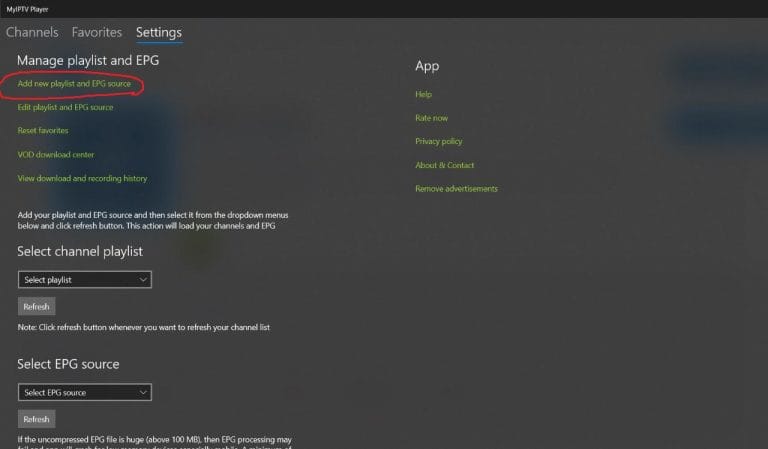
Start the app and select “Add new playlist and EPG source”.

MyIPTV Player Step 1 IPTV King

Step 2

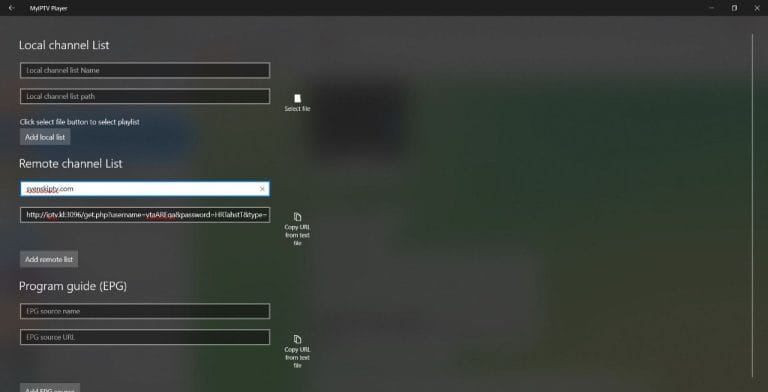
Fill in the name “iptvking.co” as the playlist name. Copy and paste your m3u link you received from us by email. Then press “Add remote list”.

NOTE! Create the list under the heading “Remote channel List”!

MyIPTV Player Step 2 IPTV King

Step 3

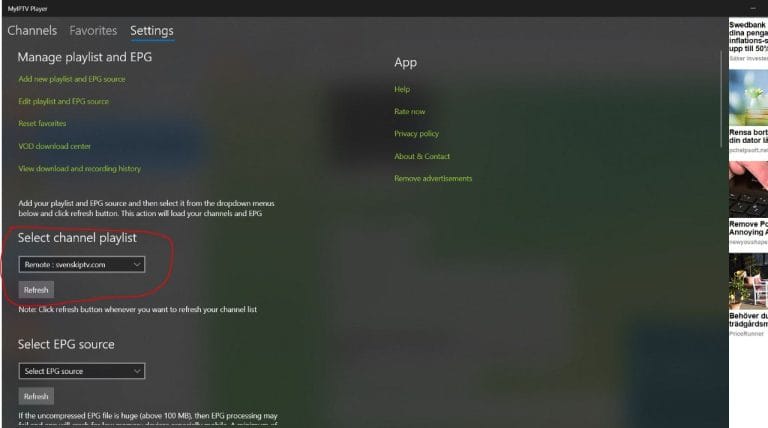
When you have saved the list, go back to “Settings” as you see in the picture. Under the “Select channel playlist” tab, select your new playlist and press the “Refresh” button.

MyIPTV Player Step 3 IPTV King

Step 4

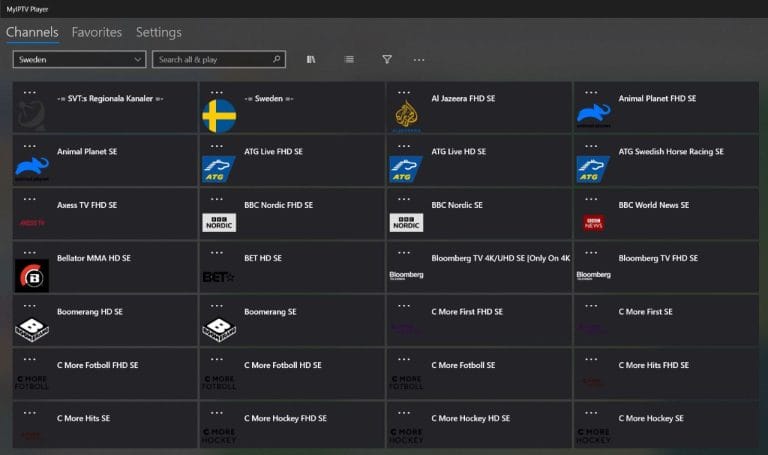
Now go to the “Channels” tab. Done! 🙂

MyIPTV Player Step 4 IPTV King

Where can I download the app?

The app can be downloaded from the Microsoft Store.

Do not download the app from any other source, such as a foreign website or similar. This is because you may accidentally download viruses if you are not vigilant.

MyIPTV Player is a popular app for streaming IPTV content on Windows and Xbox devices. It functions as a media player with support for M3U links and channel information from your IPTV provider, giving you easy access to live TV, movies, and series via the internet. The app has a user-friendly interface with support for electronic program guides (EPG), multiple audio tracks, and subtitles. You can also record programs and create favorite lists for a customized viewing experience. MyIPTV Player offers a reliable and smooth solution for IPTV streaming with flexible features to enhance your experience.

Download MyIPTV Player here.

Which devices can I use?

Computer

MyIPTV Player with Computer is a quick and easy solution if you want to get started in no time. IPTV on the computer with this app is a mediocre solution if you want to watch TV on the go. It is instead recommended that you use the IPTV Smarters app.

Xbox

MyIPTV Player with Xbox is not the best solution, but if you don’t have another device to watch TV with, you need to work with what you have. See the guide below to get started with Xbox.
[custom-step-guide id=”13096″]

step 2 IPTV King
MyIPTV Player FAQ

How do I install MyIPTV Player on my computer?

To install the app on your computer, start by downloading the app from the Microsoft store. Once you have done that, read through the instructions for how the app works on your specific device. Then request a free test by clicking on the button below.

Is MyIPTV Player free?

Yes, the app is free. However, we recommend purchasing the premium version as it unlocks some good features and removes the incredibly annoying advertising.

How do you get subtitles on MyIPTV Player?

Subtitles are not supported on the app. Therefore, another app is recommended.

Which devices can I use?

You can use the following devices to watch IPTV

We always recommend buying an IPTV box from us or from another reliable supplier that does not sell fake boxes. With a box, the experience is always best. Of course, you can also use any of the following devices to watch IPTV! Here you can see how to get started with IPTV!
step 3 IPTV King
MyIPTV Player Subtitles

Unfortunately, subtitles work poorly on this app. If subtitles are important to you, you should choose another app.

Most titles have subtitles that automatically load with the channels when you start the app. If some channels do not have subtitles, they unfortunately do not, even though most do. In some cases, you can upload subtitles from your own sources, but this is not something we recommend or support as our focus is on more important tasks for our customers.

If you want to know more about subtitles for your app, it’s usually just a Google search away where you can mainly read about this on the app manufacturer’s own website. We wish you good luck! If you need help, we’re always here! In summary, however, subtitles are not the best for this app.

MyIPTV Player On Windows 10 & Windows 11

The app works well with Windows 10. Because you can install the MyIPTV Player app and many other apps, Windows 10 is a device that can be used for TV viewing. However, we always recommend that you clean up unnecessary apps that are not used and have a slightly newer model as most IPTV lists today are very large and contain hundreds of thousands of titles such as Channels, movies, series, documentaries, etc.

Usually it takes about 5-15 minutes to get started when you try to get the TV channels up and running on your Windows 10 and Windows 11 for the first time. However, should you get stuck and need help, you can always contact our support. The app also works on Xbox, but it is not recommended to use it there as the experience is usually not the best. Other better apps are available when watching on the computer.