



IPTVX is, in our opinion, one of the best apps for watching IPTV. It’s very easy to get started with, and the app allows you to upload your channels in the following ways:
It is recommended to upload your IPTV playlist with Xtream API (i.e., with your username, password, and Portal URL provided by us upon purchase or free trial). This is because your EPG (Program Guide) is then automatically installed in the background. If you choose, for example, M3U, you need to manually fill in your EPG link provided by us. The app is one of the most popular IPTV apps for Apple TV as its interface is fantastic compared to many other apps in the same category. The app is only available for Apple devices.
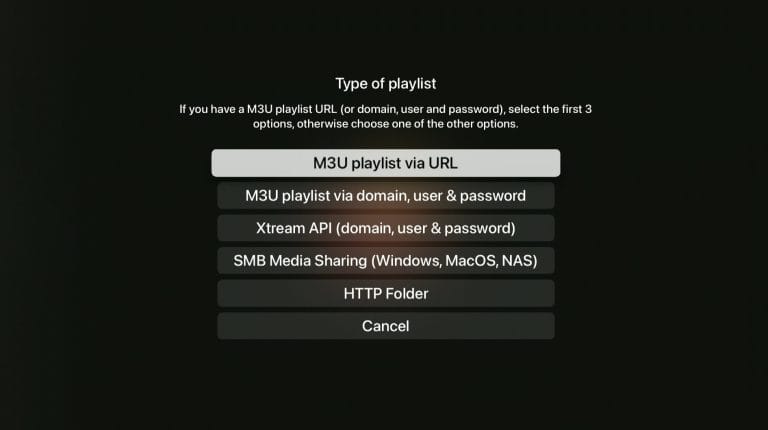
Start the app and select “Add playlist“. Then choose option 3 “Xtream API“
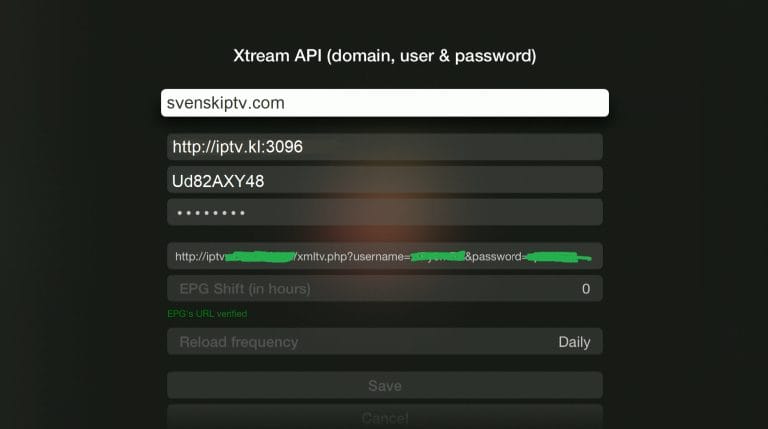
Choose a name for your new playlist. In this case, we chose the name “iptvking.co“. Then fill in the details you received from us via email. Then press “Save“.
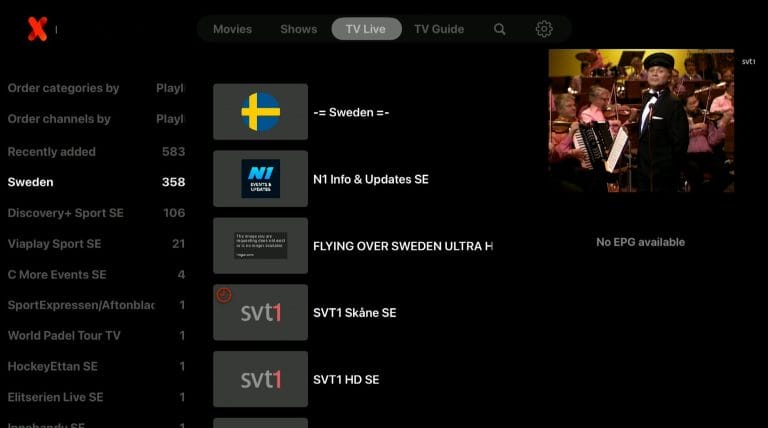
Now press your new list using your remote control.
Done! The EPG is not visible in this image as we used a free test when creating the guide.
The app works well with Apple TV. Since you can install the IPTVX app and many other apps, Apple TV is a device that can be used for TV viewing. However, we always recommend clearing unnecessary apps that are not used and having a slightly newer model as most IPTVX lists today are very large and contain hundreds of thousands of titles such as channels, movies, series, documentaries, etc.
Usually, it takes about 5-15 minutes to get started when you first try to get the TV channels running on your Apple TV. However, if you get stuck and need help, you can always contact our support.
The great thing about this app is that you can easily search for your event, movie, channel, etc., and all the different streams are displayed in a simple way. For example, if you search for a football match, it is almost always shown on several channels simultaneously. If you then search for, for example, “Real Madrid,” all channels broadcasting the match in real-time are displayed. This way, you can choose between several streams if one has lower quality.
IPTVX with Apple TV is definitely in the top 3 for best combinations for IPTV viewing. The interface is almost perfect, and IPTVX’s servers perform fantastically even during larger events where many use the app simultaneously. For the best experience, we recommend connecting a network cable between your Apple TV and router, even though the app itself is very stable.
[custom-step-guide id=”12907″]
IPTVX with Mobile is a quick and easy solution if you want to get started in no time. IP TV on mobile with the app is a very simple solution if you want to watch TV on the go. If you have an iPhone, the experience is one of the best as the app works incredibly well even on mobile. Always make sure to have the latest version of the app downloaded from the appstore.
IPTVX with iPad is a quick and easy solution if you want to get started quickly on your iPad or Android-based tablet. IP TV on the tablet with the app is a very simple solution if you want to watch TV on the go. If you have an iOS (iPad) device, the app works perfectly as an intermediary between TV and mobile. The best of both worlds, simply (larger screen on the go)
[custom-step-guide id=”26413″]
How to install IPTVX on Apple TV?
To install the app on your Apple TV, iPhone, iPad, or iPod Touch, start by downloading the app from the Appstore. Once you’ve done that, read through the instructions for how the app works on your specific device. Then request a free trial by clicking the button below.
Is IPTVX free?
No, the app is not free. You can try it for free before purchasing it. Then it costs 22 EUR per year.
How to get subtitles on IPTVX?
You get subtitles on the app by swiping up on your Apple TV remote when you’re on a movie, series, documentary, or channel. On mobile and tablet, it’s the same principle, but you tap the screen to bring up the settings when you’re on a channel.
You can use the following devices to watch IPTV
Most titles have subtitles automatically loaded together with the channels. If certain channels do not have subtitles, unfortunately they are not available. Most do have subtitles though. In some cases, you can upload subtitles from your own sources. However, this is not something we offer support for as our focus is on more important tasks for our customers.
If you want to know more about subtitles for your app, it is usually just a Google search away.
EPG (Electronic Program Guide) is available on the app. On many apps, you need to manually copy and paste an EPG link (XML) provided by us upon purchase.
However, some apps fetch EPG information when you log in with Xtreamcodes API without you having to manually add anything. If your app can only receive M3U links, you will most likely need to manually upload an xml epg link.