

XUI IPTV Player is a relatively new app available for various devices. XUI IPTV Player is easy to get started with as you only need to enter your login credentials directly in the app. You don’t need to upload your playlist through their website like with many other apps.
The app allows you to upload your channels in the following ways:
It is recommended to upload your IPTV playlist with Xtream Codes (i.e., with your login details provided by us upon purchase or free trial). This is because your EPG (Program Guide) will then be automatically installed in the background.
If you choose M3U, for example, you will need to manually enter your EPG link provided by us.

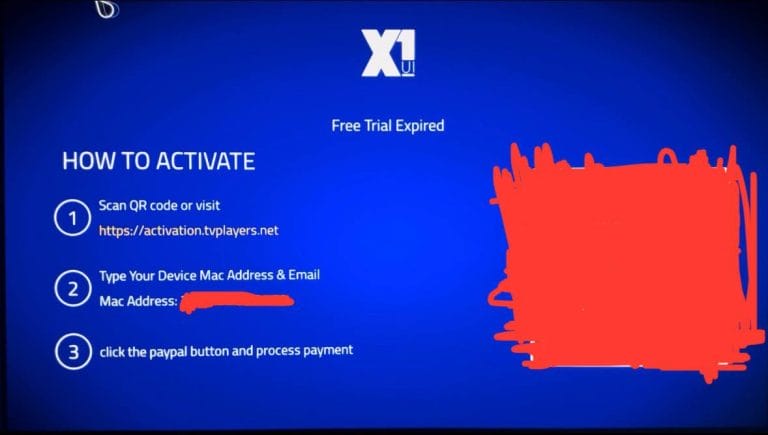
When you launch the app for the first time, you should be able to add a playlist directly as shown in step 2 of this guide. If this isn’t possible, you’ll need to purchase the app by following the instructions shown in the image below.
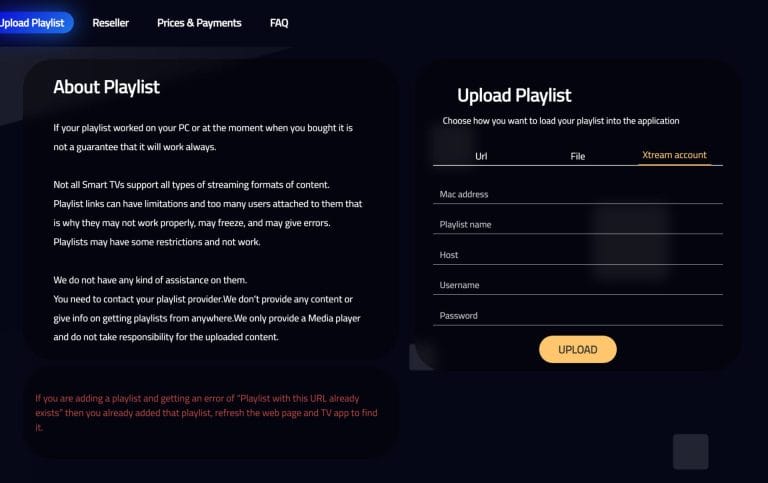
If you’re launching the app for the first time, you should be able to add a playlist by selecting “Xtream account“, then enter the login credentials you received from us via email.
Note that you need to enter the app’s mac address which you should see when first launching the app. Enter your portal URL in the “Host” field. Then press “UPLOAD“.
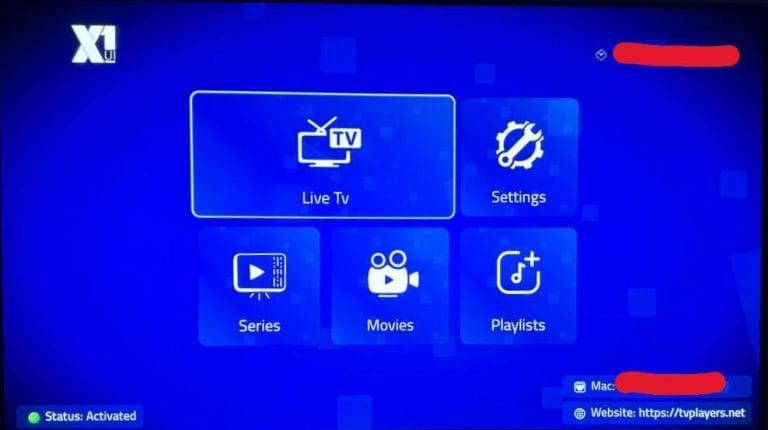
Now press, for example, “Live TV” if you want to see all channels. Done! 🙂
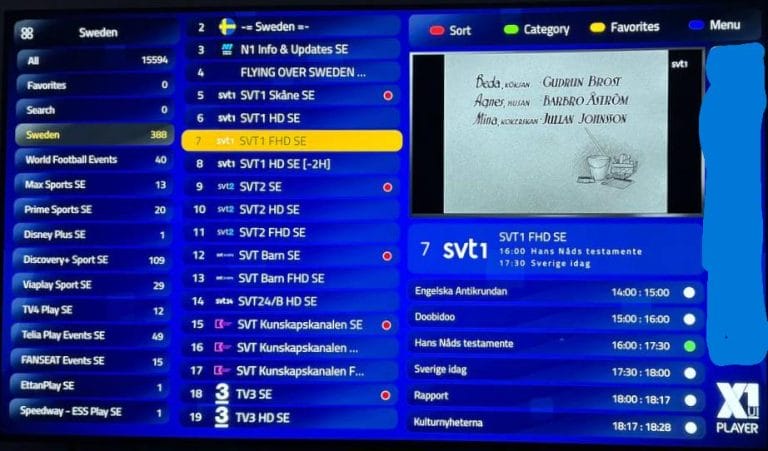
This is how it looks when the installation is completed correctly.
The app can be downloaded from the Play Store or from the “store” on your TV. APK files are also available for download but this isn’t recommended as many can contain viruses. However, the APK file from their own website is safe to download.
9Xtream IPTV with Smart TV is an excellent choice for those just getting started with IPTV. The app works perfectly with Smart TV models like LG, Samsung, Sony, Philips, and others. By installing XUI IPTV Player, along with many other IPTV apps, your Smart TV becomes a perfect device for enjoying TV viewing. However, we recommend clearing unnecessary unused apps and ensuring you have a newer TV model, as most IPTV lists today contain hundreds of thousands of titles including channels, movies, series, documentaries, and more.
XUI IPTV Player is a powerful application that gives Smart TV users access to a wide selection of IPTV channels, movies, and series. The app is easy to install and offers a smooth user experience with fast navigation and high-quality streaming. It supports various formats and resolutions, allowing you to enjoy content in both HD and 4K, depending on your internet connection. Additionally, the app supports EPG (Electronic Program Guide) for easy channel management and planning. The app is an ideal choice for those wanting to maximize their TV entertainment with comprehensive and varied content.
Even though the app works well with your device, it’s recommended to use a better app like Tivimate instead.
[custom-step-guide id=”26361″]
XUI IPTV Player with Nvidia Shield is a good solution for Nvidia Shield, although there might be other alternatives to consider depending on your needs. The app is developed to work optimally with Android-based systems like Nvidia Shield.
XUI IPTV Player is an ideal app for Nvidia Shield offering high-quality IPTV streaming with a comprehensive range of TV channels, movies, and series. It’s optimized to fully utilize Nvidia Shield’s powerful hardware, providing a fast and smooth user experience. With support for both HD and 4K resolution, you get crystal-clear picture quality and seamless playback, making it perfect for watching entertainment on large screens. User-friendly features like EPG (Electronic Program Guide) and easy navigation make it simple to browse and manage your channels. The app on Nvidia Shield is an excellent choice for a premium IPTV experience.
XUI IPTV Player with Android Box works okay as a first step, especially since it’s designed to perform optimally on Android-based systems like Android Box.
XUI IPTV Player is an effective app for Android Box that gives users access to a wide range of IPTV channels, movies, and series. It’s optimized for Android devices and offers a smooth and stable streaming experience with high quality. Supporting various video formats and resolutions, including HD and 4K, you can easily enjoy your favorite programs without interruption. The app’s user-friendly interface and EPG (Electronic Program Guide) make it easy to navigate channels and plan your viewing experiences. XUI IPTV Player is a perfect choice for maximizing entertainment on your Android Box.
But even though the app works well with your device, it is recommended to use a better app such as Tivimate instead as that app has a better interface and more stable servers.
XUI IPTV Player with Xiomi Mi S Box or Xiomi Mi Stick are unfortunately not the best devices for IPTV viewing when compared to devices like Apple TV. This is because the processor in both devices isn’t the strongest. While watching IPTV with Xiomi Mi devices is possible and the experience can still be good, if you’re looking for a more stable and smoother solution, this isn’t the preferred choice.
XUI IPTV Player with Formuler Box works quite well. However, the Formuler box is designed as a slightly different Android box as it has its own IP-TV app MyTVOnline. The MyTVOnline apps are much better than the Extreme app, and therefore it’s recommended to use those instead.
[custom-step-guide id=”26361″]

How do you install XUI IPTV Player on Smart TV?
To install the app on your Smart TV (Samsung, Google TV, LG, or other brands), start by downloading the app from the Play Store. Once you’ve done that, read through the instructions on how the app works on your specific device. Then request a free trial by clicking the button below.
Is XUI IPTV Player free?
No, the app isn’t free. You can try it free for about 10 days before you have to pay for it.
How do you get subtitles on XUI IPTV Player?
You can get subtitles on the app by pressing the red button on your remote control. However, many have reported that the later versions of the app no longer support subtitles. Therefore, another app is recommended.

Unfortunately, subtitles work poorly on this app. If subtitles are important to you, you should choose another app.
Most titles have subtitles that automatically load with the channels when you start the app. If some channels do not have subtitles, they unfortunately do not, even though most do. In some cases, you can upload subtitles from your own sources, but this is not something we recommend or support as our focus is on more important tasks for our customers.
If you want to know more about subtitles for your app, it’s usually just a Google search away where you can mainly read about this on the app manufacturer’s own website. We wish you good luck! If you need help, we are always here!