
IPTV Windows – Here’s how to get started with IPTV on your Windows computer! This is one of the most convenient ways to enjoy IPTV, especially if you want flexibility and control over your streaming experience. While it can be practical to use other devices like IPTV with Smart TV or mobile phones, a Windows computer also works well, particularly if you’re on the go and want to watch your favorite channels on a larger screen than IPTV with mobile.
Start by downloading any compatible IPTV app for Windows from the Microsoft Store. Below you’ll see some of the most popular apps we recommend for the Windows platform. Click on any app to learn how to get started and make the most of your IPTV service. Of course, there are other programs that work with Windows, but here you’ll find the apps we consider best suited for a smooth and reliable IPTV experience.
When you’re getting started, begin by searching for the apps below in the order they appear. If you don’t manage to get started with the first app you try, test the next one and the next until it works for you. With your login credentials, you can use any apps you want. So you’re not limited to a specific app.
Just remember to be careful to use only one app at a time!

Buy a Windows computer from one of the major chains like Amazon, Power, or another electronics supplier. We do not recommend buying a used windows computer as you never know how it was previously used. A used device may have been misused, and important components like the hard drive, processor, or RAM could be damaged. Additionally, a computer is not really designed to handle large IPTV playlists that can have hundreds of thousands of titles. Therefore, it is recommended to preferably use an Apple TV or a Formuler Box, for example.
Whether you already have a computer or are buying a new one, it can be good to remove unnecessary apps that aren’t used as they take up space in the TV’s storage.

Complete the basic settings and accept any terms on your Windows computer if it’s new. Then log in or create a Microsoft account to access all necessary services and apps. Install the IPTV programs you need, such as VLC Media Player or Kodi, which are popular options for IPTV on Windows. Remember to save any documentation and packaging, as the warranty for your computer is often tied to these.
Also connect your computer to the network. It’s always recommended to use an Ethernet cable (network cable) for best performance and stability, but it also works well with WiFi if your router is close enough and provides a strong signal. To ensure a smooth IPTV experience, make sure your router provides sufficient coverage and speed in your home.
If large objects like walls, furniture, or doors block the signal, your Windows device may get a poor connection, which can affect IPTV streaming. Therefore, it’s best to use a network cable directly between the computer and the router to avoid interruptions and optimize your IPTV connection.
To get started with IPTV on your Windows computer, you first need to choose an IPTV provider. It’s important to choose a reliable provider that offers good content and stable streaming. Additionally, you should check that the provider supports the apps and programs you plan to use. Many IPTV providers offer M3U lists, which can be imported into various IPTV players, including VLC and Kodi.

Today, there are many different ip tv apps for IPTV with Windows. Above on this page, you can see some that we recommend. Preferably download the apps from Play Store or App Store. You can also watch IPTV with the following devices!

Now it’s time for you to request a free test from us by pressing the button below. We always recommend buying 3 months after your free test to have time to test properly as our range is enormous. We offer basically all sports, all movies, and all series and documentaries you can imagine. Of course, the entire range is included even when you test our service for free.
First and foremost, Windows operating systems offer stability and user-friendliness. This makes it an ideal platform for IPTV services. Additionally, there’s a wide selection of programs and apps designed for Windows, allowing users to choose what best suits their needs. Popular IPTV apps like VLC Media Player and Kodi work seamlessly on Windows. Furthermore, it’s also possible to install dedicated IPTV players like MyIPTV Player and Simple TV, which provide better streaming options and more customization possibilities.
Another advantage of using Windows is that the operating system often receives updates that improve performance and security. Therefore, you can always be sure that you get a smooth and secure IPTV experience, without interruptions or uncertainties. Moreover, you have the ability to easily handle other tasks on your computer while streaming, creating a flexible and productive work environment.

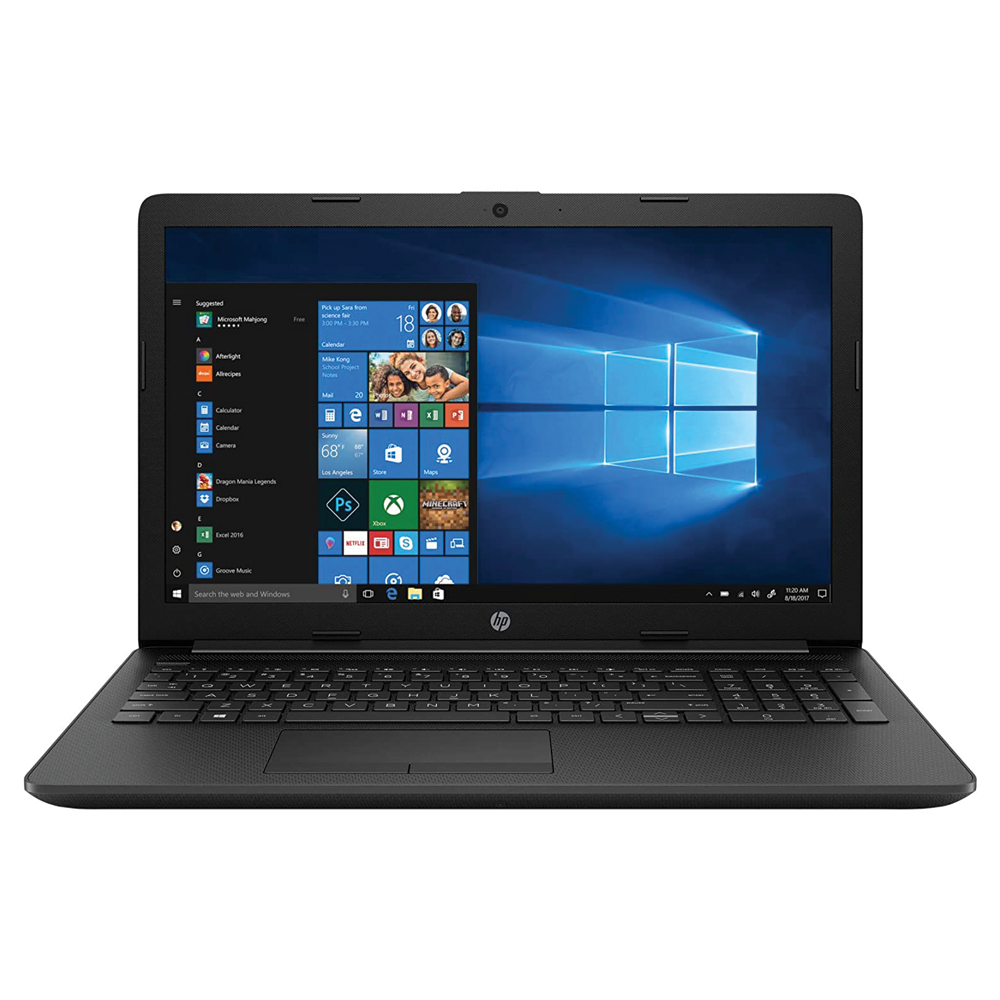
In summary, we recommend using a Windows computer to watch IPTV in the best way. Start by making sure your computer is updated and configured with the right settings. Then connect your computer to the internet, preferably via a network cable for stable and reliable connection. After that, download an IPTV app like VLC Media Player or Kodi and request a free trial or buy a 1-12 month package from us.
Enjoy a wide range of channels, movies, series, documentaries, and all PPV events directly on your Windows computer!
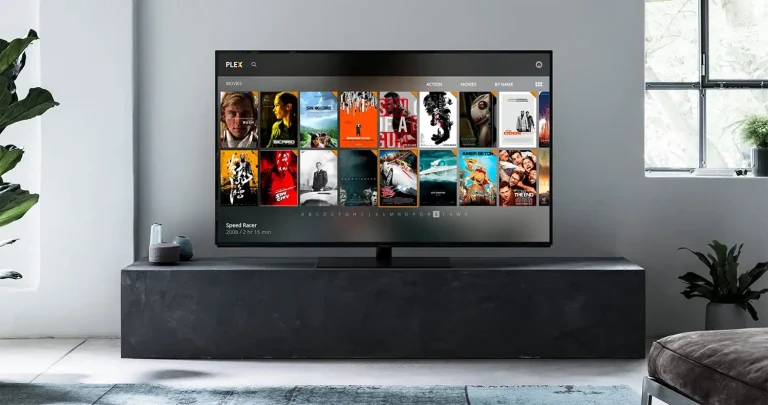
1. Buy a Windows Computer
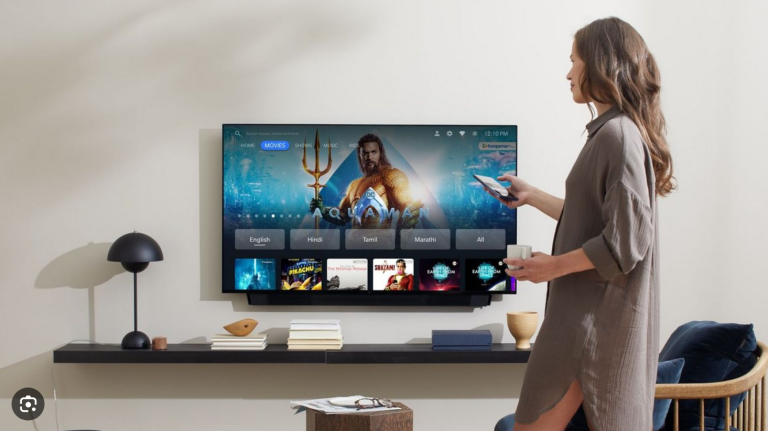
2. Complete basic settings
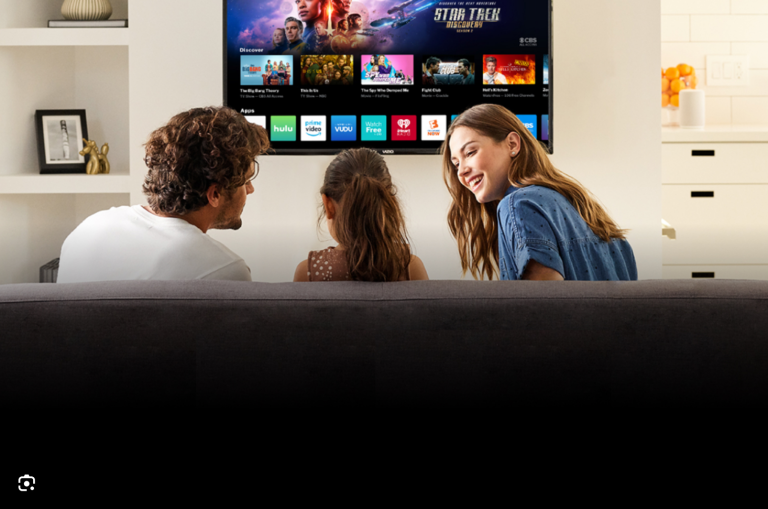
3. Download IPTV app
4. Test/Buy our service

5. Enjoy IPTV!