
How to get subtitles on IPTV can be very different depending on which language you want to see.
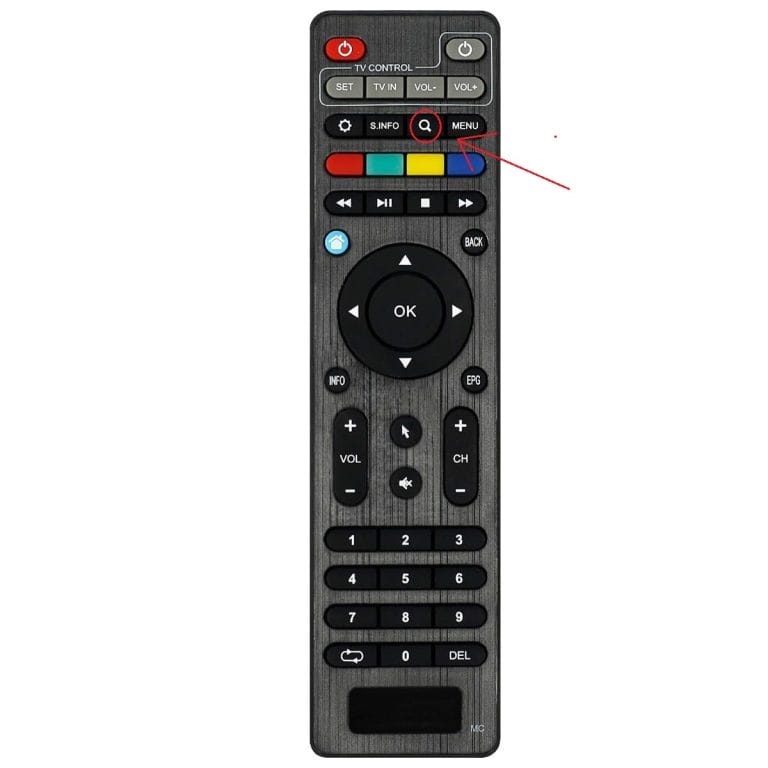
On most devices and apps, you can press the Subtitles button on your remote control.
Almost all our titles have subtitles in all the Scandinavian languages. So when you ask yourself How do you get subtitles on IPTV? You know they’re available. See below to find out about your specific device/app.
How do you get subtitles on IPTV then?
When watching TV, you usually want subtitles since it can sometimes be difficult to understand the language being spoken or when you have trouble hearing what’s being said.
How to get subtitles on IPTV differs from app to app and among different devices. We always recommend using a box to watch your channels since subtitles usually work better on boxes.
On boxes, it’s usually one of the colored buttons on the remote control that you use.
Many wonder how to get subtitles on IPTV? Most of our selection comes with subtitles. Unfortunately, not all channels come with subtitles. This is because the source we get the channels from doesn’t have subtitles from the start.
If you still want subtitles, there are certain online services you can use to add subtitles.
Open a channel → press Settings / Player options → select Subtitles → choose desired subtitle track.
Play a channel or movie → open the three-dot menu → select Subtitles → choose language.
Start playback → press the screen → select CC / Subtitle icon → choose a subtitle file or track.
During playback → open Player settings → select Subtitles → activate and choose subtitle track.
Play channel/VOD → press OK/Menu → go to Subtitles → select available subtitle option.
Start a stream → open Options → select Subtitles → activate and choose track.
When video is playing → swipe down on the remote control → select Subtitles → choose language.
Open a video → click Settings → select Subtitles → activate and choose track/file.
Play a stream → press Menu → go to Subtitles → select internal or external subtitles.
Start playback → press Options → select Subtitles → activate and choose language.
During playback → click the CC icon (Subtitles) → select one of the available subtitle tracks.
Play a video → open Subtitles from the screen menu → select desired subtitle track.
Start the stream → open Settings → select Subtitles → activate and choose language/track.
During playback → swipe down on the remote control → open Subtitles → select track.
Play content → open Menu → select Subtitles → choose available track.
Start playback → click CC/Subtitles → choose between embedded or external subtitles.
Press Menu during playback → go to Subtitles → turn on → select subtitle track.
Play video → press Menu → select Subtitles → activate and choose language.
Start the stream → press Options → go to Subtitles → activate and select track.
Play content → open Menu → select Subtitles → activate and choose file/track.
Open channel/VOD → press OK → select Subtitles → choose language.
Play a video → press Menu → select Subtitles → activate and choose track.
Start playback → hold OK or open More options (…) → select CC/Subtitles → choose track.
During playback → open Player options → go to Subtitles → activate and choose language.
Play the stream → open Settings or CC icon → activate Subtitles → choose language/track.
NOTE! Unfortunately, not all apps can display subtitles as they are constantly updated and changed!