IPTV Nvidia Shield Instructions – To watch IPTV on your Nvidia Shield, you need to download an IPTV app. Below you’ll find different apps that work with your Nvidia Shield. Click on any app to learn how to get started. There are certainly other apps that work with your device, but below you’ll find the ones we recommend.
We have listed the apps in order of which we consider easiest to get started with, where the best is first/at the top.
Get Started
When getting started with IPTV Nvidia Shield, begin by searching for the apps below in the order shown. If you don’t succeed with the first app you try, test the next one and so on until it works for you. With your login credentials, you can use any apps you want. You’re not limited to a specific app.
Just remember to only use one app at a time!
Recommended apps to start with
We recommend starting with one of the apps below as they are the easiest to get started with if you’re beginning with a free trial or if you’re a beginner. The playlist is easy to activate on these apps.
The “relatively simple apps” are also easy to get started with, but here you need to visit the app’s website and upload your playlist by copying and pasting the m3u link you get from us during trial/purchase.
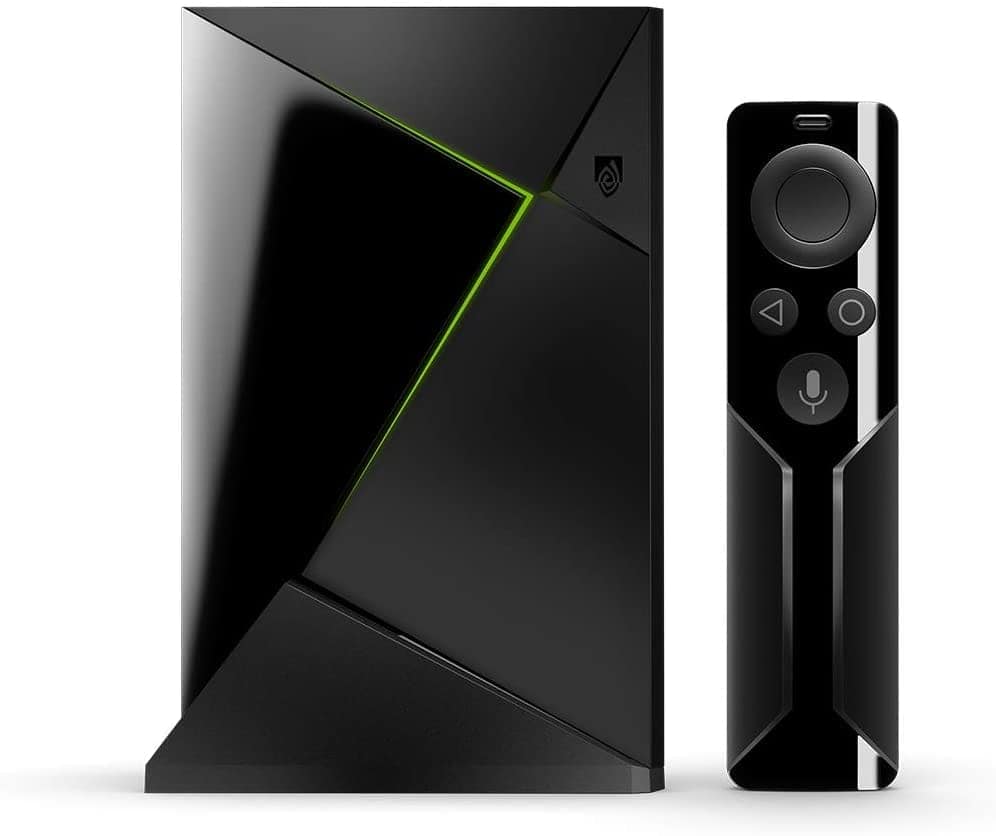
Buy a Nvidia Shield from us! We don’t recommend buying a used IPTV Nvidia Shield as you never know how it was previously used. A used device may have been misused, and important components like the hard drive, processor, or RAM might be damaged. It’s always recommended to use a Nvidia Shield, TVIP box, Apple TV, or a Formuler Box.
Whether you already have a Nvidia Shield or buy a new one, it’s good to remove unnecessary apps that aren’t being used as they take up storage space in the box.
Basic Settings
Complete the initial setup and accept any terms on your new Nvidia Shield if it’s new. Keep the packaging as your warranty may be tied to it.
Also connect your new box to your network. It is always recommended to use an Ethernet cable (network cable) but it also works well with Wi-Fi provided that your router is not too far away and that it is a good router that provides good coverage of the network in the home.
If large objects like refrigerators, wardrobes, doors, and other items are in the way, your Android box may lose or get poor connection at times. Therefore, play it safe and use a network cable between the device and router.
Download an IPTV app
Today there are many different IPTV apps for IPTV with Nvidia Shield. Above on this page you can see some that we recommend. Preferably download the apps from the Play Store or App Store. You can also watch IPTV with the following devices!
Now it’s time for you to request a free trial from us by clicking the button below. We always recommend buying 3 months after your free trial to have enough time to test properly as our content is enormous. We offer basically all sports, all movies, and all series and documentaries you can think of. Of course, the entire content is included even when you test our service for free.
In summary, we recommend buying a new Nvidia Shield for IPTV Nvidia Shield. Then complete the initial setup and connect the box to the internet (preferably with a network cable). Then download an IPTV app and request a free trial or buy a 1-12 month package from us.
Enjoy channels, movies, series, documentaries + all PPV events!
IPTV on NVIDIA Shield is an excellent choice for those wanting a powerful and stable streaming experience. NVIDIA Shield, powered by Android TV, has access to many IPTV apps like TiviMate, IPTV Smarters, and Perfect Player. By connecting to an IPTV service, you can stream thousands of TV channels, movies, and series directly via internet. The device’s powerful hardware, including a fast processor and support for 4K and HDR, ensures high picture quality and smooth playback, even with high-resolution streams.
Installation is simple: download an IPTV app from Google Play Store, enter your M3U link or credentials from your IPTV provider, and start watching. With NVIDIA Shield’s support for stable internet connection via Wi-Fi or Ethernet, you get a trouble-free experience without buffering. The device also offers convenient navigation with remote control and Google Assistant voice control support, making it easy to switch between channels and programs.