The app can be downloaded for certain devices from the Play Store. However, the app has disappeared for many as it seems the company has now focused on the IBO Player app.
Only download Duplex Play from a well-known source.
Duplex IPTV Instructions
Duplex IPTV is a very simple app to use and get started with. The app allows you to upload your channels with an M3U link via their website: https://edit.duplexplay.com/
Duplex IPTV (Duplex Play) is one of the most downloaded IPTV apps after IPTV Smarters. However, it’s not available for Apple devices for some reason.
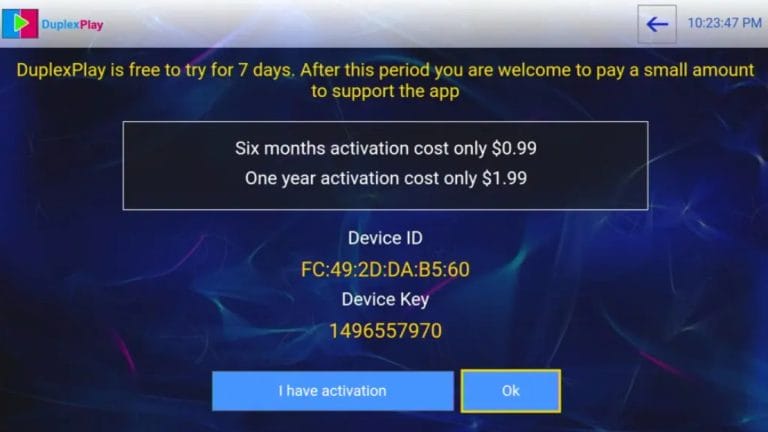
Step 1
Start by launching the app. Note your “Device ID” and “Device Key“.
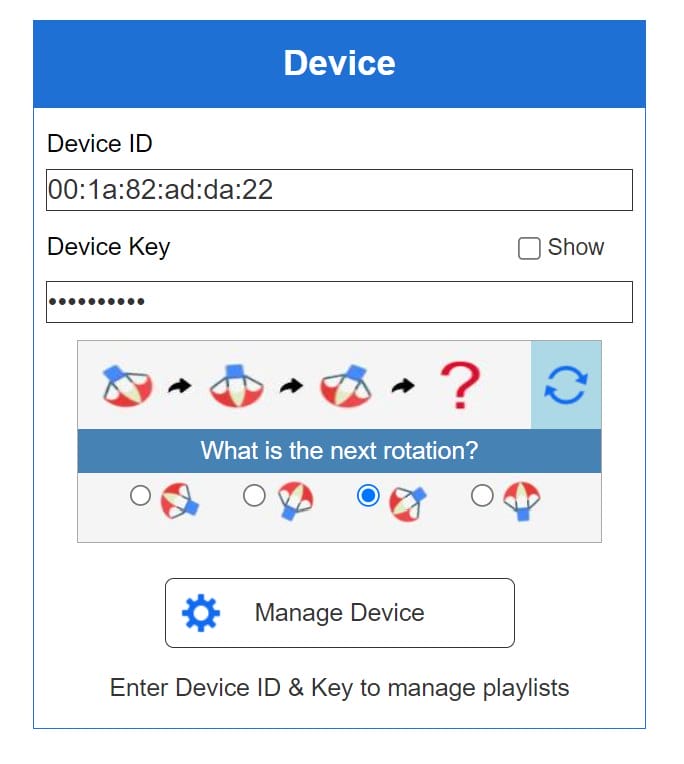
Step 2
Go to www.edit.duplexplay.com and enter your “Device ID” and “Device Key“. Then press “Manage Device” after clicking the correct box on the small rotating icons.
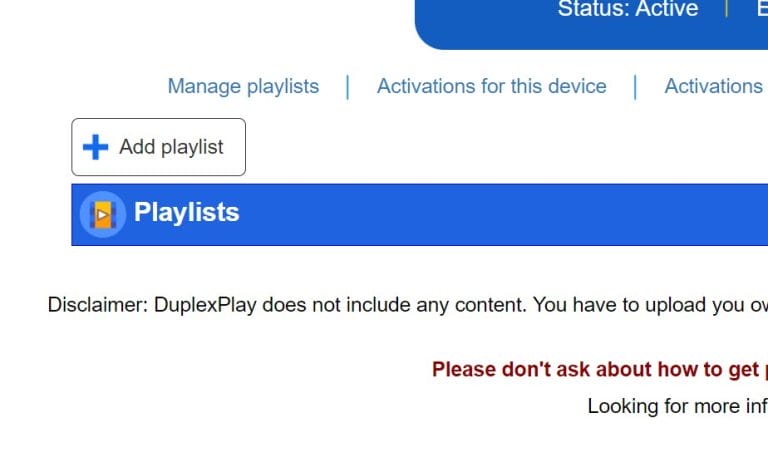
Step 3
Click on “Add playlist“.
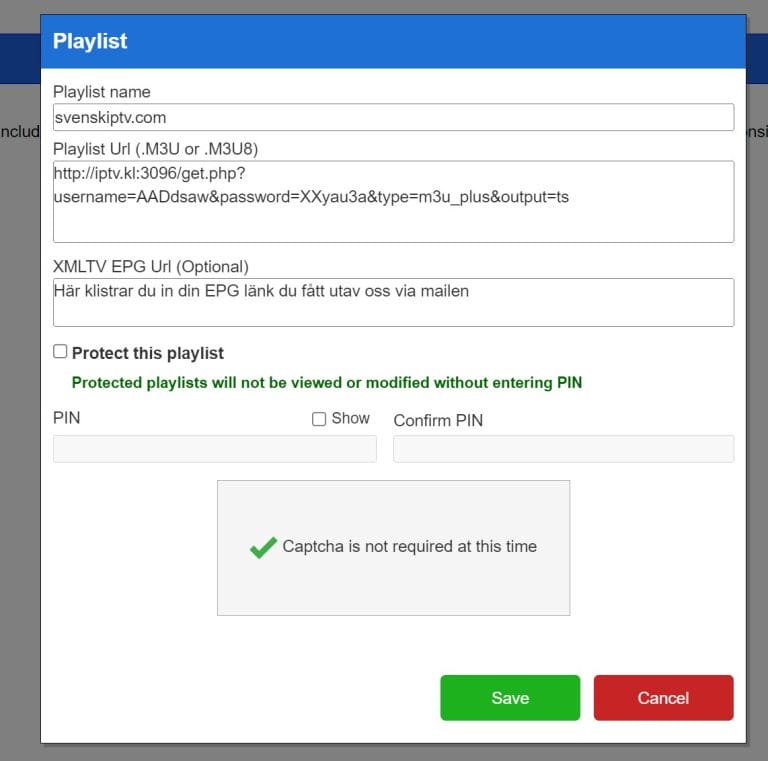
Step 4
For “Playlist name” enter the name “iptvking.co” and for “Playlist Url” paste your M3U link that you received in the email from us. Then click “Save” and restart your Smart TV or device, and you should see your new list when you open the app.
Instructions for your device
FREE TEST -IPTV
After reading through the instructions for your device, you should request a free test by pressing the button. We recommend buying 3-6 months as the goal is to have time to test the service at your leisure, hence a longer period is recommended. Of course, you can buy one month, but make sure to spend more time on the couch if you do.
We ask you to read through the instructions on how to get started even if you think you know the installation by heart.
Like most IPTV providers today, we only offer a one-hour test, so you should only request a free test if you really have time to test the channels at your leisure.
The test is not for watching a football match or similar, but only to get a quick insight into how our setup looks.
Duplex Play can be used on several devices, and below you can see some examples.
Initially, it might be good to test the app on your existing device.
If you’re looking for the best IPTV experience, i.e., if you watch a lot of TV, it’s always recommended to buy a box like Apple TV or a TVIP box. However, if you don’t have that option, you can use the app on the following devices and many more.
The Electronic Program Guide (EPG) is available on the app, whereas on many apps you need to manually copy and paste an EPG link (XML) that you get from us upon purchase.
However, some apps fetch EPG information when you log in with Xtreamcodes API without you having to manually add anything. If your app can only receive M3U links, you will most likely need to manually upload an xml epg link.
Duplex IPTV Subtitles
Most titles have subtitles that automatically load with the channels when you start the app. If some channels do not have subtitles, they unfortunately do not, even though most do. In some cases, you can upload subtitles from your own sources, but this is not something we recommend or support as our focus is on more important tasks for our customers.
If you want to know more about subtitles for your app, it’s usually just a Google search away where you can mainly read about this on the app manufacturer’s own website. We wish you good luck! If you need help, we are always here!
DuplexPlay on Samsung TV
The app works well with Samsung TV. Since you can install the DuplexPlay app and many other apps, Samsung TV is a device that can be used for TV viewing. However, we always recommend clearing unnecessary apps that are not used and having a slightly newer model as most IPTV lists today are very large and contain hundreds of thousands of titles such as Channels, movies, series, documentaries, etc.
Usually, it takes about 5-15 minutes to get started when you’re trying to get the TV channels up and running on your Samsung TV for the first time. However, if you get stuck and need help, you can always contact our support.