




Tivimate Instructions

Tivimate allows you to watch IP TV channels on your device/app.

With the app, you can easily get started with your TV viewing and gain access to all the world’s channels in an instant. See the instructions below!

Tivimate Instructions for your specific device

steg 1 svenskiptv

Instructions for Tivimate IPTV Player

Tivimate is available for Smart TV devices and Android boxes. Tivimate is also available for other devices but is only recommended for TVs and boxes. With the app, you can upload your playlist in several different ways, but we only recommend these (preferably xtreamcodes) :

  • M3U link
  • Xtream Codes API (Username)
  • Portal

It is recommended to upload your IPTV playlist using Xtream Codes API (i.e., with your username, password, and Portal URL that you receive from us upon purchase or free trial). This is because your EPG (Program Guide) is then automatically installed in the background. If you choose M3U, for example, you need to manually enter your EPG link that you receive from us. The app is one of the most downloaded IPTV apps in recent years after IPTV Smarters. Tivimate Player is available for certain Smart TV devices and Android devices. However, it is not available for Apple devices for some reason.

Step 1

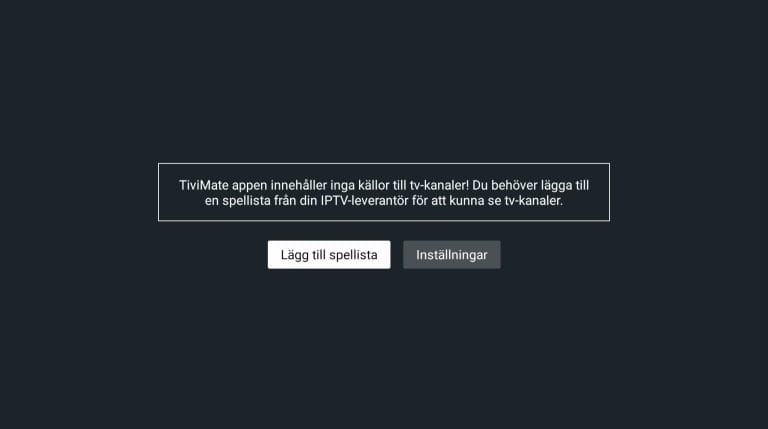
Download the app from Play Store. Then start the app and select “Add Playlist“.

Smart TV Tivimate Steg 1 SvenskIPTV

Step 2

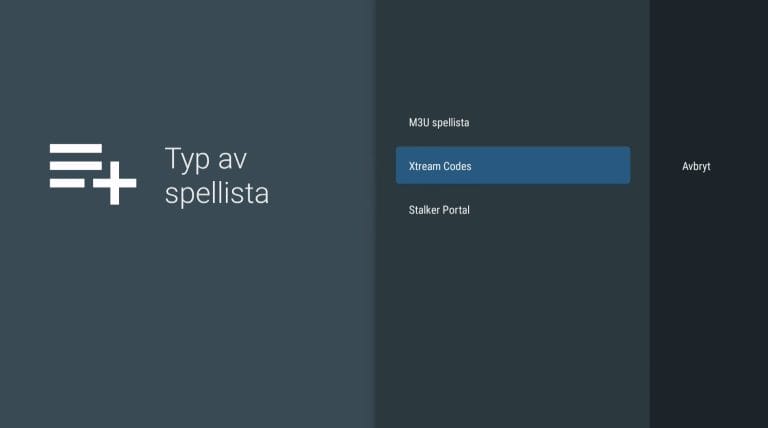
Now select the type of playlist. We recommend “Xtream Codes“.

Smart TV Tivimate Steg 2 SvenskIPTV

Step 3

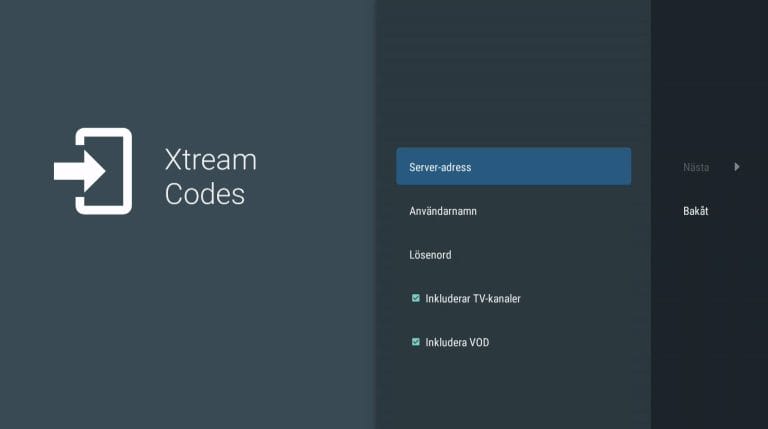
In “Server Address“, enter your Portal URL, username, and password that you received from us in the welcome email. Leave “Include VOD” and “Include TV Channels” checked.

Android boxar Tivimate Steg 3 SvenskIPTV

Step 4

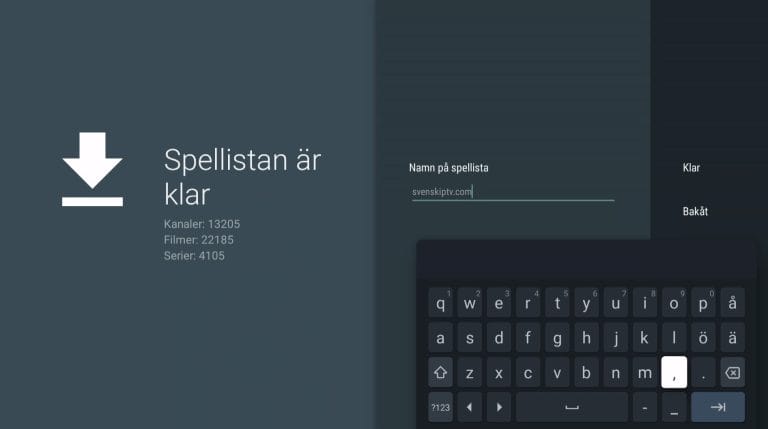
Name your new playlist “iptvking.co“.

Android boxar Tivimate Steg 4 SvenskIPTV

Step 5

Done! Remember that even though this app is very good, it is always recommended to use a box for watching IPTV, such as IPTV with Apple TV.

NOTE! EPG appears after a short while and when purchasing the service and Premium version of the app, hence EPG is not visible in the image.

Smart TV Tivimate Steg 5 SvenskIPTV

Where can I download the app?

The app can be downloaded from Play Store to your device. The app is not available for all Smart TV devices and boxes. If you have an Android-based system, there is a good chance this app is available for download.

Which devices can I use?

Smart TV

Tivimate on Smart TV works excellently. However, the Smart TV you use needs to have an Android-based system. Unfortunately, the app is not available for regular Smart TV devices.
[custom-step-guide id=”14047″]

Nvidia Shield

Tivimate with Nvidia Shield works very well since Nvidia Shield is an Android-based device with good hardware. That is, good processor, RAM, etc. Therefore, the app works very well together with Nvidia Shield. It is strongly recommended that you use an Android-based box.

Android Box

Tivimate with Android Box naturally works well. Just like above, the app works excellently with Android-based devices where you especially prefer boxes over other devices. Feel free to buy the Premium version of the app if you plan to watch for an extended period.
[custom-step-guide id=”14087″]

steg 2 svenskiptv

Tivimate FAQ

How do you install Tivimate on Smart TV?

To install the app on your Smart TV (Samsung, Google TV, LG, or other brands), start by downloading the app from the Play Store. Once you’ve done that, read through the instructions on how the app works on your specific device. Then request a free trial by clicking the button below. Note that your device must be Android-based.

Is Tivimate free?

The app is free to download, but you will need the premium version for it to work smoothly with all features. The app costs about 35 EUR.

How do you get subtitles on Tivimate?

You can get subtitles on the app by pressing the red button on your remote control. However, many have reported that the later versions of the app no longer support subtitles. Therefore, another app is recommended.

steg 3 svenskiptv

Tivimate Premium

Tivimate Premium is the paid version of the app and is strongly recommended if you are going to watch IP-TV. It works very well together with Android TV and Android Boxes. Since you can install the Tivimate app as well as many other apps on your Android TV or Android Box, these two are good devices that can be used for IPTV viewing.

When using your device (TV, Box, etc.) to watch IPTV, we always recommend uninstalling unnecessary apps that are not used as they can take up necessary space, and you should have a somewhat newer model since most IPTV lists today are very large and contain hundreds of thousands of titles such as channels, movies, series, documentaries, etc. This means you may experience lag if you have too many unnecessary apps on your device.

Usually, it takes about 5-15 minutes to get started when you first try to get IP-TV channels running on your Android TV or any other device. However, if you get stuck and need help, you can always contact our support.

Tivimate IPTV Player App

Tivimate IPTV Player is an excellent app when it comes to Smart TV devices or boxes that can download apps. It is also available on sticks such as Xiomi Mi Stick, but sticks are generally not recommended as they have inferior hardware. It is now time for you to request a free trial by clicking the “Try IPTV for free!” button. In this case, we always recommend buying 3-6 months of IPTV after your free trial to have time to test properly since our selection is very, very large.

steg 4 svenskiptv
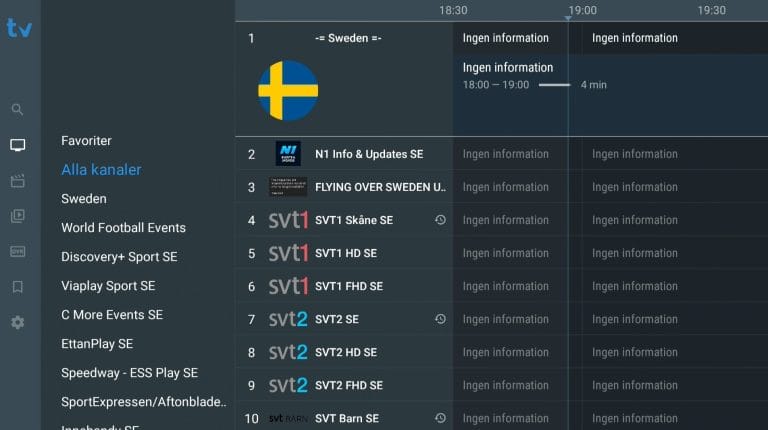
Tivimate EPG

EPG or Electronic Program Guide is available on the app. On many apps, you need to manually copy and paste an EPG link (XML) that you receive from us upon purchase.

However, some apps fetch EPG information when you log in with Xtreamcodes API without you having to manually add anything. If your app can only receive M3U links, you will most likely need to manually upload an xml epg link.

Tivimate subtitles

Most titles have subtitles automatically loaded together with the channels. If certain channels do not have subtitles, unfortunately they are not available. Most do have subtitles though. In some cases, you can upload subtitles from your own sources. However, this is not something we offer support for as our focus is on more important tasks for our customers.

If you want to know more about subtitles for your app, it is usually just a Google search away.

Which devices can I use?

You can use the following devices to watch IPTV

We always recommend buying an IPTV box from us or from another reliable supplier that does not sell fake boxes. With a box, the experience is always best. Of course, you can also use any of the following devices to watch IPTV! Here you can see how to get started with IPTV!